Saturday, July 09, 2011

Bird Eye View of a 3D City by K-Birdie !

Right-Click on image and Open In New Tab for a Larger Version

A Project my firm has been working on. Based on high tech minimal design. Its still in the works. Building design was done as teamwork between colleagues. As you can see, its a little more than big :)

Modelled : AutoCad
Rendered : 3D Max
Additional : Usage of Google Maps and Some Pshop filters.

For more of K-Birdie's work http://sampdoria.deviantart.com

FREE Flash Source (FLA) : Slideshow & Button Rollovers


Category: Adobe Flash CS & Above.
Skill Level: Intermediate
Live Demo Link: http://www.souldesigns.net/tutorials/flash_slide/
Source Files(FLA & SWF): http://rapidshare.com/files/2959834319/Entellics_Slideshow_FLA.zip
                                                                                                        OR
                                    http://hotfile.com/dl/123689164/3cbc696/Entellics_Slideshow_FLA.zip.html

I am putting the source FLA of this Flash slideshow and roll-over for free for learning purposes. I did this project back in 2008 as a home page for a new company. Two buttons are not working, but you get the idea how it works, pretty simple stuff but tips for some image zoom blur effects. I put the rest upon you to learn from the FLA.

Thanks.

Thursday, July 07, 2011

Featured Artist: Mike Johnson a.k.a ~DarthMurda


Another talented CG Artist from Blur Studios, Mike Johnson nicknamed ~DarthMurda at Deviant Art. Mike has a cool portfolio mostly containing architectural exteriors and interiors with other objects designed as well.

About Mike Johnson:
Graduate from Art & Design High Shool, Manhattan,NY. Relocated to California to pursue an Aggressive Inline skating career. Through skating,traveled to many areas of the world: France, Germany, Poland, Russia, Scotland, Austria, Denmark and Amsterdam.

Self taught in creative applications such as Illustrator, Photoshop, After Effects, 3D Studio Max, Vray, Mentalray, and Digital Fusion. 7 +yrs Experience Passionate about working with 3d. Currently reside in Los Angeles, California working fulltime at Blur Studio.

To look at more work of DarthMurda:
http://michaeljohnsoncg.com
http://darthmurda.deviantart.com

Tuesday, July 05, 2011

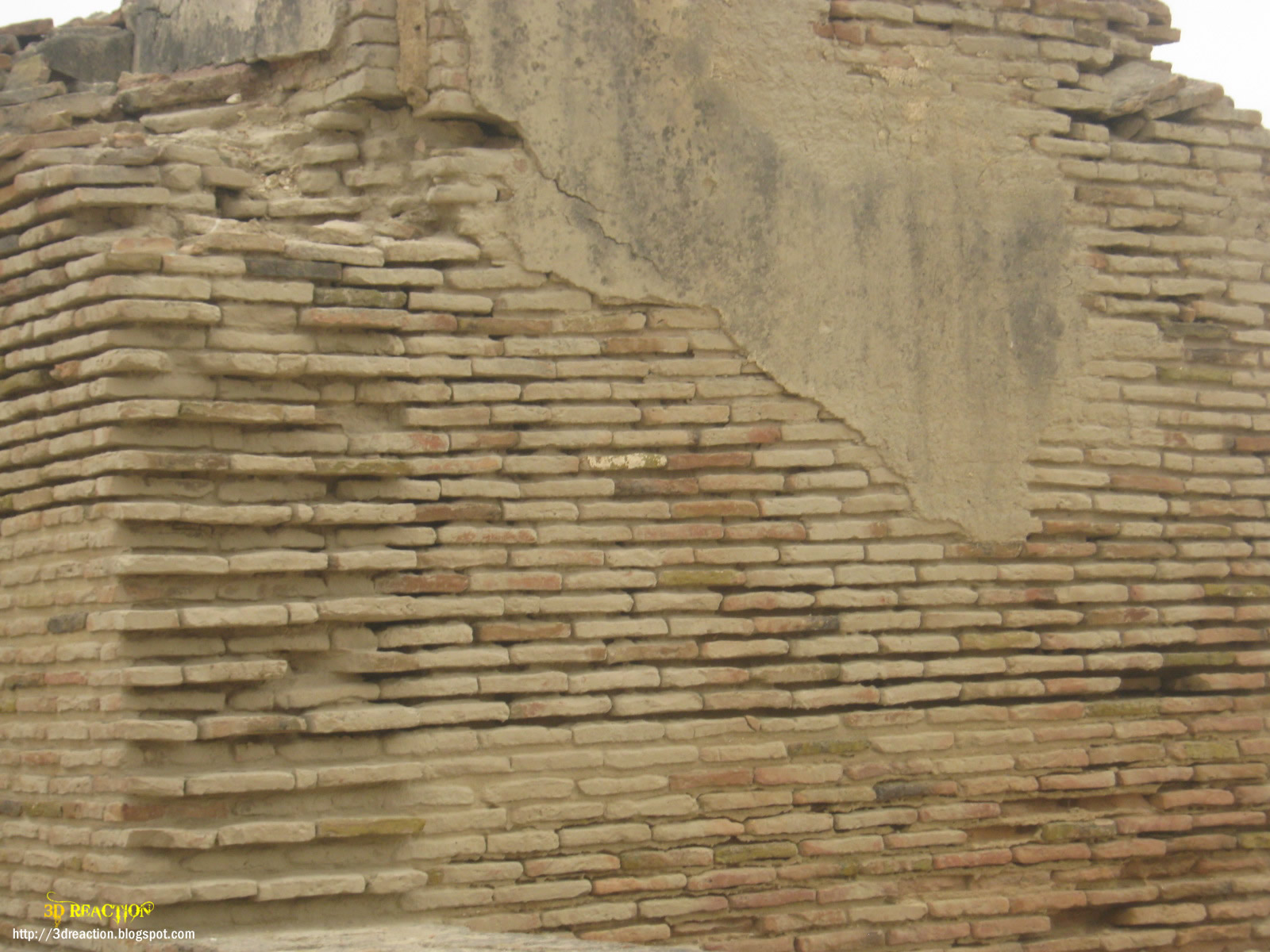
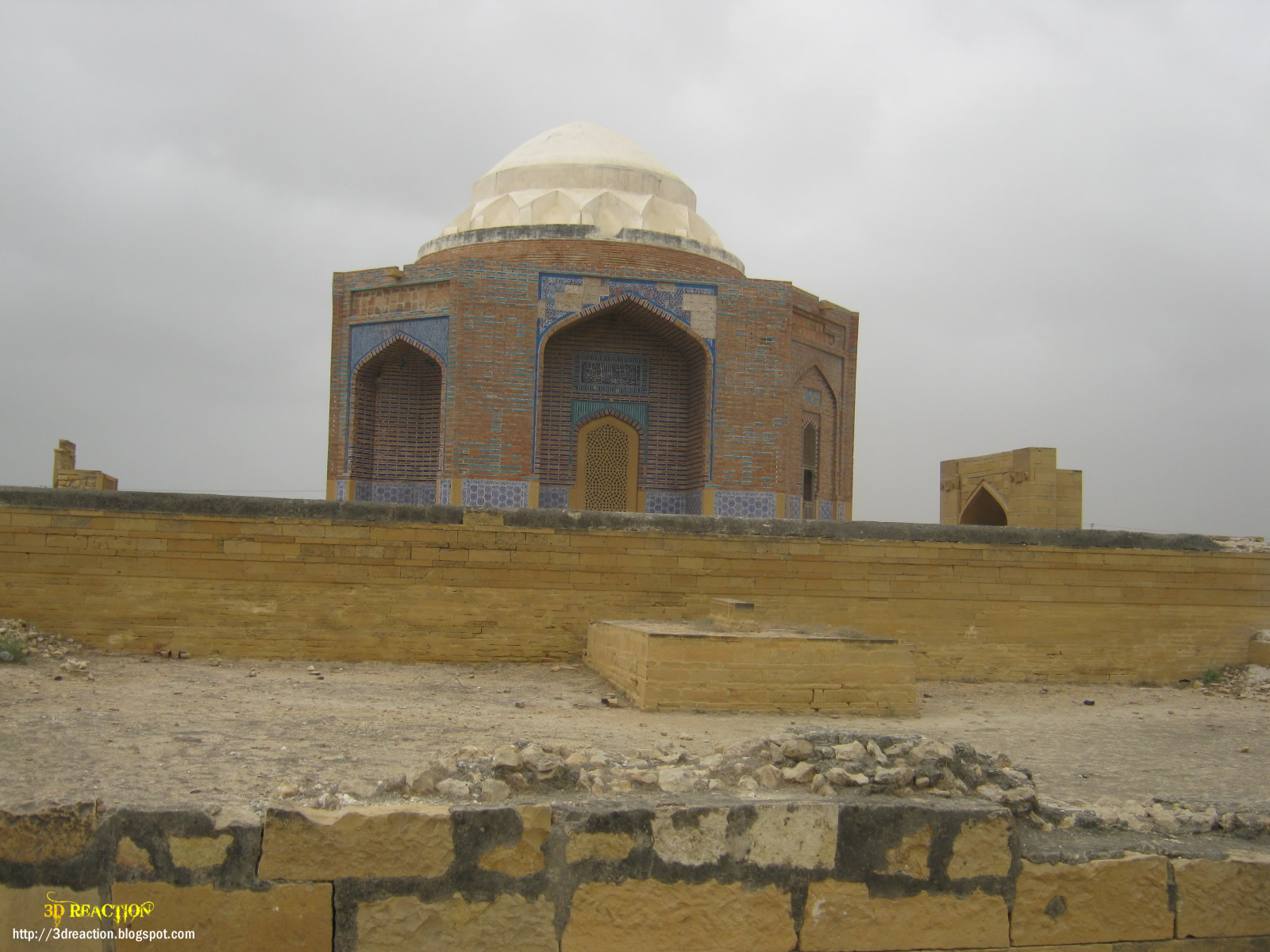
FREE Textures. Bricks, Walls, Old Temples, Shrines, Tombs.


To Download full size image ( 1600 x 1200 px ) Right-Click, Open in New Tab on images.
I went to a historical place named Thatta in Sindh, Pakistan. I took the pictures of hundreds of years old graveyard, which has old graves, old shrines, old mughal emperor's Tombs etc. These pics can be helpful in designing Indian historical tombs or temples etc. The walls and brick textures can be helpful in many ways for Graphic, Web and 3D Designers... depends on your creativity !

I would want to use some of these images as website backgrounds for some stunning effects. :)

thanks.

Wednesday, June 15, 2011

Google Chromebooks - Will it bring a change & what's Microsoft thinking ?

June 15, Google has released the new Chromebook which is new netbook with some great-looking features, but will it be successful? Not sure right now but it seems to offer great services and after all Google has released its operating system, even if it's for the netbook, they are making progress towards the OS market and that should ring the alarms for Microsof :)

On the other hand Microsoft is investing billions to buy Skype ! :) and that can be a bad deal for them as well, because Google Talk and Video / Voice Chat in Gmail and Free Calls to USA and Canada will give them a tough time.

However, Google Chromebook looks like my Acer laptop and there are versions from Samsung as well. The Samsung version's price on Amazon is a bit higher, not sure why !


A great feature of Chromebook is it's cloud based backup, even if you loose your chromebook you have all your data / work automatically backed up and you just get a new chromebook and start from where you left. Also there are no annoying update warnings / notifications, it just updates itself to the latest version and don't bother you for it.
Let's see how it goes for Google and Microsoft has some tough time coming soon I guess..... :)

Saturday, June 11, 2011

Concept Art from Shiraz Saeed.


I had mentioned my friend Shiraz Saeed in previous posts... I had some of his work stored on my old hard drive which i restored today. Have look at his sketches.

Free Website Source - HTML, CSS, FLA and Photoshop PSD.

Hi,
Today I am sharing a project of mine with everyone out there to provide others with a learning curve as well. This is a website that I converted from Photoshop PSD to HTML. Although the site is an old project from 2005 and the layout is done in tables but I think it'll be a good help as learning wheels.

I had created roll-overs with Fireworks at that time, now you can use either CSS or Javscript roll-overs today, which are easier and more accessible.

You can download the site with source files here:

http://hotfile.com/dl/123690438/8aecb93/4dcard.com.zip.html

The zip file contains html files, source PSDs, PNGs and a Flash FLA etc. I think it'll be good help for beginners. I'll be soon sharing more projects. :) You're FREE to use any source code or files in your projects.

Wednesday, June 08, 2011

Quick Tip: Using Transparent PNGs For a Number of Effects

Hi.
Recently I am working on my new project for a client and the design required using a semi-transparent background for the drop down menus, from which you can see through the objects behind it. :) Since CSS prior to CSS3 doesn't offer a background color with opacity and there might be solutions which can get complex. A simple solution is to use a semi-transparent PNG (Portable Network Graphics) image as a background and set background properties like repeat and position as you need and you have a great looking drop-down menu background which is semi-transparent or with the opacity you have set.

you can either use Adobe Fireworks or Photoshop to create a PNG with opacity. I'll be postign tutorials but not sure of the timeline right now as projects have caught me up. The link to the semi-transparent drop down menu is  http://samnelson.biz/inland/

Take a look and let me know your comments.

Friday, May 27, 2011

CSS Tip: Preloading Rollover BG Image

I encountered an issue today, I created a nav bar for a client project and used the "background-image" to change on :hover for creating a roll-over effect using CSS. But when I showed the client the page, He asked me to pre-load the hover images so that there is no interruption when the user put his mouse over the buttons. As my nav buttons are all different in size so I had to use around 5 different images for every button.

I crawled the web and found a great simple solution that I want to share. We create a div for every background image and define a class in css  to pre-load the background image and assign the property visibility: hidden; to the class so that the DIVs with the pre-loaded images will not appear on the page.

So I created five classes for five buttons and assign every class to the DIVs in my HTML Document.
.imgLoader {
    background-image:url(images/nav/home-menu_bg-over.png);
    visibility:hidden;
}
.imgLoader2 {
    background-image:url(images/nav/catering_bg-over.png);
    visibility:hidden;
}
.imgLoader3 {
    background-image:url(images/nav/bar-b-q_benefits_bg-over.png);
    visibility:hidden;
}
.imgLoader4 {
    background-image:url(images/nav/locations_bg-over.png);
    visibility:hidden;
}
.imgLoader5 {
    background-image:url(images/nav/about_bg-over.png);
    visibility:hidden;
}
 In this way, we have preloaded all the hover state images and when we set it as hover image for our links, it does not load from the start.

pretty-cool.... :)

Tuesday, May 24, 2011

Quick Tutorial: Designing A Newsletter Ad with Fireworks + Photoshop


Today's short tutorial is about designing a newsletter ad using Adobe Photoshop and Fireworks. You must have noticed in your subscribed email newsletters that some Graphic / Image Ads appear in the email embedded with the HTML Newsletter.

Category:
Designing a Graphic Newsletter Ad
Skill Level: Intermediate to Advance
Source Files: http://hotfile.com/dl/133156607/9bbf162/Design_Newsletter-PSD_PNG.zip.html
Tools: Fireworks 8, Photoshop CS2

Standard Width for Email Ads: 600 Pixels

This is an ad that I did last year for one of my clients in dubai, I am now uploading the source files as open source to be used as a learning experience.

I use a strategy that is I think of my own, as we all know that drawing in Fireworks is far easier than Photoshop, at least for me... so I have designed the basic objects and image placements of the ad in Fireworks 8 and then open the .PNG file in Photoshop and use the photoshop text tool for type, as photoshop's text/type result is very smooth and you can rasterize the text and apply filters if you can get more smoother / crisper results.

Look at the source files for further guidance. I used Myriad Pro as the main font, you can search and download from the web.

Thursday, May 19, 2011

Tutorial: Defining a site in Adobe Dreamweaver CS 5

Hi. Again this month...
I know posts have been slow for the last month, but have been very busy with a few projects. Today I am going to share a basic tutorial on how to define a New website in Dreamweaver CS5 and linking it to your local testing server and testing the pages.

Also we are going to use XAMPP as the local server in this tutorial, therefore please follow more information below regarding XAMPP, it's a great application which makes life easier on web designers who want to test their pages on local server, test simple PHP pages etc. before launching on live server. You can also use IIS built-in Windows.

Category: Adobe Dreamweaver CS5
Skill Level: Novice to Beginner
Environment: Windows, XAMPP ( or Local server like IIS /Apache)

Author: Iqtidar Ali @ Soul Designs

XAMPP:
XAMPP is an easy to install Apache distribution containing MySQL, PHP and Perl. XAMPP is really very easy to install and to use - just download, extract and start. For more information please follow this link http://www.apachefriends.org/en/xampp.html

Step 1:
Open Dreamweaver CS5 and and If you have the layout in Designer Mode, which I assume is, Click on the "Files" button to open File Management window of Dreamweaver. Alternatively you can goto " Window -> Files " or Simply press "F8" to bring up the "Files" window. See Screen 1-0

Screen 1-0. Click or Right-click on image for high-res shot or righ-click open in new tab to download.

Step 2:
Open the drop down under "Files" and click on "Manage Sites". See Screen 1-0

Step 3:
New Window of "Manage Sites" will open now, click on "New..." as you can see in Screen 3-0

Screen 3-0. Click or Right-click on image for high-res shot or righ-click open in new tab to download.
Step 4:
Now's the time to define our new site in Dreamweaver. In the new dialogue box opened We will put the name of the site, in this example I have used the name "Example Site" and we will click on the folder link to define a local folder for the site where we will store our website's files. See Screen 4-0

Screen 4-0. Click or Right-click on image for high-res shot or righ-click open in new tab to download.

Step 5:
Now we will define the testing server for this site. On the left of the dialogue box under "Site" there's another tab "Servers" click on servers tab, the new box will appear, see on the bottom left of the blank box there should be a "+" sign click on the plus-sign.

After clicking the "+" sign anothe pop-up box will opened to ask you information regarding the server. Because in this example we are using our local-computer as testing server, we will use the option "Connect using: Local/Network"

Screen 5-0. Click or Right-click on image for high-res shot or righ-click open in new tab to download.

Now Browse for the foloder in which your server keeps http files / htdocs / public html , In my case the server folder is located in "C:/xampp/htdocs/example_site". Now press "Save" button and for more guidance look at Screen 5-0

Step 6:
Click to check the Check-box under "Testing" to make our defined server as the testing server as well. Press "Save" to save the site settings. See Screen 6-0

Screen 6-0. Click or Right-click on image for high-res shot or righ-click open in new tab to download.

Step 7:

Create a new HTML document by Pressing "CTRL+N" or going to "File -> New". See Screen 7-0

Screen 7-0. Click or Right-click on image for high-res shot or righ-click open in new tab to download.

Step 8:
Save the document in the local site directory's root as "Index.html" or "Index.php" the one suits you better and create some Copy / Tables /DIVs etc and Save the document. Open "Files" window again and Press the "Up Arrow" which says "Put files", this will upload your local files to testing/remote server. See Screen 8-0

Screen 8-0. Click or Right-click on image for high-res shot or righ-click open in new tab to download.

Step 9:
Now's the time to test your website. Put the local server address in your browser's address bar and it should work fine. In my case the address is "http://localhost/example_site", hurraaah... it works.... See Screen 9-0

Screen 9-0. Click or Right-click on image for high-res shot or righ-click open in new tab to download.