FREE Web Design Tutorials with Source Files, Web Design and Development Articles, Flash Resources and Tutorials, Learning Adobe Creative Suite, 3D Artists and Artwork, Various Learning Resources.
Saturday, June 11, 2011
Free Website Source - HTML, CSS, FLA and Photoshop PSD.
Hi,
Today I am sharing a project of mine with everyone out there to provide others with a learning curve as well. This is a website that I converted from Photoshop PSD to HTML. Although the site is an old project from 2005 and the layout is done in tables but I think it'll be a good help as learning wheels.
I had created roll-overs with Fireworks at that time, now you can use either CSS or Javscript roll-overs today, which are easier and more accessible.
You can download the site with source files here:
http://hotfile.com/dl/123690438/8aecb93/4dcard.com.zip.html
The zip file contains html files, source PSDs, PNGs and a Flash FLA etc. I think it'll be good help for beginners. I'll be soon sharing more projects. :) You're FREE to use any source code or files in your projects.
Today I am sharing a project of mine with everyone out there to provide others with a learning curve as well. This is a website that I converted from Photoshop PSD to HTML. Although the site is an old project from 2005 and the layout is done in tables but I think it'll be a good help as learning wheels.
I had created roll-overs with Fireworks at that time, now you can use either CSS or Javscript roll-overs today, which are easier and more accessible.
You can download the site with source files here:
http://hotfile.com/dl/123690438/8aecb93/4dcard.com.zip.html
The zip file contains html files, source PSDs, PNGs and a Flash FLA etc. I think it'll be good help for beginners. I'll be soon sharing more projects. :) You're FREE to use any source code or files in your projects.
Wednesday, June 08, 2011
Quick Tip: Using Transparent PNGs For a Number of Effects
Hi.
Recently I am working on my new project for a client and the design required using a semi-transparent background for the drop down menus, from which you can see through the objects behind it. :) Since CSS prior to CSS3 doesn't offer a background color with opacity and there might be solutions which can get complex. A simple solution is to use a semi-transparent PNG (Portable Network Graphics) image as a background and set background properties like repeat and position as you need and you have a great looking drop-down menu background which is semi-transparent or with the opacity you have set.
you can either use Adobe Fireworks or Photoshop to create a PNG with opacity. I'll be postign tutorials but not sure of the timeline right now as projects have caught me up. The link to the semi-transparent drop down menu is http://samnelson.biz/inland/
Take a look and let me know your comments.
Recently I am working on my new project for a client and the design required using a semi-transparent background for the drop down menus, from which you can see through the objects behind it. :) Since CSS prior to CSS3 doesn't offer a background color with opacity and there might be solutions which can get complex. A simple solution is to use a semi-transparent PNG (Portable Network Graphics) image as a background and set background properties like repeat and position as you need and you have a great looking drop-down menu background which is semi-transparent or with the opacity you have set.
you can either use Adobe Fireworks or Photoshop to create a PNG with opacity. I'll be postign tutorials but not sure of the timeline right now as projects have caught me up. The link to the semi-transparent drop down menu is http://samnelson.biz/inland/
Take a look and let me know your comments.
Labels:
Adobe Fireworks,
Adobe Photoshop,
CSS Tip,
Quick Tutorial,
XHTML
Friday, May 27, 2011
CSS Tip: Preloading Rollover BG Image
I encountered an issue today, I created a nav bar for a client project and used the "background-image" to change on :hover for creating a roll-over effect using CSS. But when I showed the client the page, He asked me to pre-load the hover images so that there is no interruption when the user put his mouse over the buttons. As my nav buttons are all different in size so I had to use around 5 different images for every button.
I crawled the web and found a great simple solution that I want to share. We create a div for every background image and define a class in css to pre-load the background image and assign the property visibility: hidden; to the class so that the DIVs with the pre-loaded images will not appear on the page.
So I created five classes for five buttons and assign every class to the DIVs in my HTML Document.
pretty-cool.... :)
I crawled the web and found a great simple solution that I want to share. We create a div for every background image and define a class in css to pre-load the background image and assign the property visibility: hidden; to the class so that the DIVs with the pre-loaded images will not appear on the page.
So I created five classes for five buttons and assign every class to the DIVs in my HTML Document.
.imgLoader {In this way, we have preloaded all the hover state images and when we set it as hover image for our links, it does not load from the start.
background-image:url(images/nav/home-menu_bg-over.png);
visibility:hidden;
}
.imgLoader2 {
background-image:url(images/nav/catering_bg-over.png);
visibility:hidden;
}
.imgLoader3 {
background-image:url(images/nav/bar-b-q_benefits_bg-over.png);
visibility:hidden;
}
.imgLoader4 {
background-image:url(images/nav/locations_bg-over.png);
visibility:hidden;
}
.imgLoader5 {
background-image:url(images/nav/about_bg-over.png);
visibility:hidden;
}
pretty-cool.... :)
Tuesday, May 24, 2011
Quick Tutorial: Designing A Newsletter Ad with Fireworks + Photoshop

Today's short tutorial is about designing a newsletter ad using Adobe Photoshop and Fireworks. You must have noticed in your subscribed email newsletters that some Graphic / Image Ads appear in the email embedded with the HTML Newsletter.
Category: Designing a Graphic Newsletter Ad
Skill Level: Intermediate to Advance
Source Files: http://hotfile.com/dl/133156607/9bbf162/Design_Newsletter-PSD_PNG.zip.html
Tools: Fireworks 8, Photoshop CS2
Standard Width for Email Ads: 600 Pixels
This is an ad that I did last year for one of my clients in dubai, I am now uploading the source files as open source to be used as a learning experience.
I use a strategy that is I think of my own, as we all know that drawing in Fireworks is far easier than Photoshop, at least for me... so I have designed the basic objects and image placements of the ad in Fireworks 8 and then open the .PNG file in Photoshop and use the photoshop text tool for type, as photoshop's text/type result is very smooth and you can rasterize the text and apply filters if you can get more smoother / crisper results.
Look at the source files for further guidance. I used Myriad Pro as the main font, you can search and download from the web.
Labels:
Adobe Photoshop,
Graphic Newsletter,
HTML Newsletter
Thursday, May 19, 2011
Tutorial: Defining a site in Adobe Dreamweaver CS 5
Hi. Again this month...
I know posts have been slow for the last month, but have been very busy with a few projects. Today I am going to share a basic tutorial on how to define a New website in Dreamweaver CS5 and linking it to your local testing server and testing the pages.
Also we are going to use XAMPP as the local server in this tutorial, therefore please follow more information below regarding XAMPP, it's a great application which makes life easier on web designers who want to test their pages on local server, test simple PHP pages etc. before launching on live server. You can also use IIS built-in Windows.
Category: Adobe Dreamweaver CS5
Skill Level: Novice to Beginner
Environment: Windows, XAMPP ( or Local server like IIS /Apache)
Author: Iqtidar Ali @ Soul Designs
XAMPP:
XAMPP is an easy to install Apache distribution containing MySQL, PHP and Perl. XAMPP is really very easy to install and to use - just download, extract and start. For more information please follow this link http://www.apachefriends.org/en/xampp.html
Step 1:
Open Dreamweaver CS5 and and If you have the layout in Designer Mode, which I assume is, Click on the "Files" button to open File Management window of Dreamweaver. Alternatively you can goto " Window -> Files " or Simply press "F8" to bring up the "Files" window. See Screen 1-0
Screen 1-0. Click or Right-click on image for high-res shot or righ-click open in new tab to download.
Step 2:
Open the drop down under "Files" and click on "Manage Sites". See Screen 1-0
Step 3:
New Window of "Manage Sites" will open now, click on "New..." as you can see in Screen 3-0
Screen 3-0. Click or Right-click on image for high-res shot or righ-click open in new tab to download.
Step 4:
Now's the time to define our new site in Dreamweaver. In the new dialogue box opened We will put the name of the site, in this example I have used the name "Example Site" and we will click on the folder link to define a local folder for the site where we will store our website's files. See Screen 4-0
Screen 4-0. Click or Right-click on image for high-res shot or righ-click open in new tab to download.
I know posts have been slow for the last month, but have been very busy with a few projects. Today I am going to share a basic tutorial on how to define a New website in Dreamweaver CS5 and linking it to your local testing server and testing the pages.
Also we are going to use XAMPP as the local server in this tutorial, therefore please follow more information below regarding XAMPP, it's a great application which makes life easier on web designers who want to test their pages on local server, test simple PHP pages etc. before launching on live server. You can also use IIS built-in Windows.
Category: Adobe Dreamweaver CS5
Skill Level: Novice to Beginner
Environment: Windows, XAMPP ( or Local server like IIS /Apache)
Author: Iqtidar Ali @ Soul Designs
XAMPP:
XAMPP is an easy to install Apache distribution containing MySQL, PHP and Perl. XAMPP is really very easy to install and to use - just download, extract and start. For more information please follow this link http://www.apachefriends.org/en/xampp.html
Step 1:
Open Dreamweaver CS5 and and If you have the layout in Designer Mode, which I assume is, Click on the "Files" button to open File Management window of Dreamweaver. Alternatively you can goto " Window -> Files " or Simply press "F8" to bring up the "Files" window. See Screen 1-0
Screen 1-0. Click or Right-click on image for high-res shot or righ-click open in new tab to download.Step 2:
Open the drop down under "Files" and click on "Manage Sites". See Screen 1-0
Step 3:
New Window of "Manage Sites" will open now, click on "New..." as you can see in Screen 3-0
Screen 3-0. Click or Right-click on image for high-res shot or righ-click open in new tab to download.Now's the time to define our new site in Dreamweaver. In the new dialogue box opened We will put the name of the site, in this example I have used the name "Example Site" and we will click on the folder link to define a local folder for the site where we will store our website's files. See Screen 4-0
Screen 4-0. Click or Right-click on image for high-res shot or righ-click open in new tab to download.Step 5:
Now we will define the testing server for this site. On the left of the dialogue box under "Site" there's another tab "Servers" click on servers tab, the new box will appear, see on the bottom left of the blank box there should be a "+" sign click on the plus-sign.
After clicking the "+" sign anothe pop-up box will opened to ask you information regarding the server. Because in this example we are using our local-computer as testing server, we will use the option "Connect using: Local/Network"
Screen 5-0. Click or Right-click on image for high-res shot or righ-click open in new tab to download.
Now Browse for the foloder in which your server keeps http files / htdocs / public html , In my case the server folder is located in "C:/xampp/htdocs/example_site". Now press "Save" button and for more guidance look at Screen 5-0
Step 6:
Click to check the Check-box under "Testing" to make our defined server as the testing server as well. Press "Save" to save the site settings. See Screen 6-0
Screen 6-0. Click or Right-click on image for high-res shot or righ-click open in new tab to download.
Step 7:
Create a new HTML document by Pressing "CTRL+N" or going to "File -> New". See Screen 7-0
Screen 7-0. Click or Right-click on image for high-res shot or righ-click open in new tab to download.
Step 8:
Save the document in the local site directory's root as "Index.html" or "Index.php" the one suits you better and create some Copy / Tables /DIVs etc and Save the document. Open "Files" window again and Press the "Up Arrow" which says "Put files", this will upload your local files to testing/remote server. See Screen 8-0
Screen 8-0. Click or Right-click on image for high-res shot or righ-click open in new tab to download.
Step 9:
Now's the time to test your website. Put the local server address in your browser's address bar and it should work fine. In my case the address is "http://localhost/example_site", hurraaah... it works.... See Screen 9-0
Now we will define the testing server for this site. On the left of the dialogue box under "Site" there's another tab "Servers" click on servers tab, the new box will appear, see on the bottom left of the blank box there should be a "+" sign click on the plus-sign.
After clicking the "+" sign anothe pop-up box will opened to ask you information regarding the server. Because in this example we are using our local-computer as testing server, we will use the option "Connect using: Local/Network"
Screen 5-0. Click or Right-click on image for high-res shot or righ-click open in new tab to download.Now Browse for the foloder in which your server keeps http files / htdocs / public html , In my case the server folder is located in "C:/xampp/htdocs/example_site". Now press "Save" button and for more guidance look at Screen 5-0
Step 6:
Click to check the Check-box under "Testing" to make our defined server as the testing server as well. Press "Save" to save the site settings. See Screen 6-0
Screen 6-0. Click or Right-click on image for high-res shot or righ-click open in new tab to download.Step 7:
Create a new HTML document by Pressing "CTRL+N" or going to "File -> New". See Screen 7-0
Screen 7-0. Click or Right-click on image for high-res shot or righ-click open in new tab to download.Step 8:
Save the document in the local site directory's root as "Index.html" or "Index.php" the one suits you better and create some Copy / Tables /DIVs etc and Save the document. Open "Files" window again and Press the "Up Arrow" which says "Put files", this will upload your local files to testing/remote server. See Screen 8-0
Screen 8-0. Click or Right-click on image for high-res shot or righ-click open in new tab to download.Step 9:
Now's the time to test your website. Put the local server address in your browser's address bar and it should work fine. In my case the address is "http://localhost/example_site", hurraaah... it works.... See Screen 9-0
Wednesday, May 18, 2011
CG Wallpaper: Futuristic City by Alexander Preuss
Labels:
3d Modeling,
3D Wallpaper,
CG Wallpaper,
Futuristic City,
wallpaper
Thursday, April 21, 2011
Tech Talk: Facebook Performs Better In Chrome ?
Hi, just a little chat today....
I have noticed that Facebook works more smoothly in Chrome 10.0.x (the version which I have) than in FireFox 3.6. Some elements of Facebook like Add Friend Dialogue Box make FireFox hang for a little time and specially when facebook opens the "Suggest Friends" dialogue box it just hangs the whole firefox browser until it has fully loaded and all other tabs get in-accessible during this loading and execution and on the same computer I used Chrome and it just works fine; it renders the box smoother, faster and doesn't hang other tabs. In the meanwhile other tabs just keep working as normal.
Did you see the same problem? Please let me know your thoughts. :D Not sure how Fire Fox 4 will perform in this regard. I'll post my thoughts when I use Fire Fox.
thanks
Iqtidar Ali
www.souldesigns.net
Labels:
Browser Wars,
Tech Talk,
Technology
Friday, April 01, 2011
Tutorial: Gallery Thumbnail Roll-Overs - Flash CS5 & ActionScript 3
Hi. everyone designer / developer out there... how are you people? I am posting the first tutorial on Flash. I will try to make it as easier & simple as I can. OK, now to the real stuff.Category: Adobe Flash CS4 / CS5, ActionScript 3.0 / AS3
Skill Level: Novice to Beginner
Live Demo Link: http://www.souldesigns.net/tutorials/flash_gallery/
Source Files(FLA & SWF): http://hotfile.com/dl/123691859/4824f09/gallery_rollovers.zip.html (updated download link)
Author: Iqtidar Ali @ Soul Designs
Last Updated: Mar 15, 2012.
Summary:
Please take a look at above link first to get the idea of what we are going to achieve with this tutorial. I am going to take an approach that's going to take care of the details and where-ever I feel reasoning, I will give links to resources which elaborate why we are using a specific technique.
Flash designers should now face the facts that we have to get used to Action Script now... because you cannot ignore it... we have to learn it to at least to a level that will make our lives easier, and believe me it's not that difficult.
Step 1: What you need?
#1: Flash Cs4 or CS5
#2: A bunch of Images that fit your design.
Step 2: Creating New Flash File
Now it's time to get it going. First of all open Adobe Flash and goto "File -> New" it'll display a dialogue-box with severl options to start with; we are going to work with the default option "ActionScript 3.0" which is recommended if you are going to publish your flash work for your website. ActionScript 2.0 is not recommended as it is now quite old and not upto the standards of OOP (Object Oriented Programming).
Adjusting Document Properties
When Flash creates a new document it applies the default dimensions to the newly created document, most of the time we need to change the dimensions to our requirements. In this tutorial I am using a document of Widht = 850 x Hieght = 450 Pixels. We can change these settings by pressing "CTRL + J" or going to "Modify -> Document" in the top-menu.
Screen 2-0. Click or Right-click on image for high-res shot or righ-click open in new tab to download.Step 3: Importing Images to stage.
Now we are in our new flash document and you need to remember to save it :) , it's time to import our images... so keep on the main stage and press "CTRL + R" or goto "File -> Import -> Import to Stage" See Screen 3-0.
Screen 3-0. Click or Right-click on image for high-res shot or righ-click open in new tab to download.
Screen 3-1. Click or Right-click on image for high-res shot or righ-click open in new tab to download.Converting to Symbol (Movie Clip)
when all our images are imported to stage and are on a single frame. We need to select them all either by Click(Mouse Down)+Drag just like we draw a rectagle but just with the ' Selection Tool (Shortcut "V") ' or Pressing "CTRL+A (select all)" and goto "Modify -> Convert to Symbol" or press "F8" on the keyboard, now a dialogue box will appear, select MovieClip as your type and other details of this box are discussed in Screen 3-3 below;
Screen 3-2. Click or Right-click on image for high-res shot or righ-click open in new tab to download.
Screen 3-3. Click or Right-click on image for high-res shot or righ-click open in new tab to download.Now press OK to finish the process of converting our stack of images to a movie clip. Now we need to 'Double Click' on the movie clip to enter inside it or to edit it.
Step 4: Setting up movie Clip:
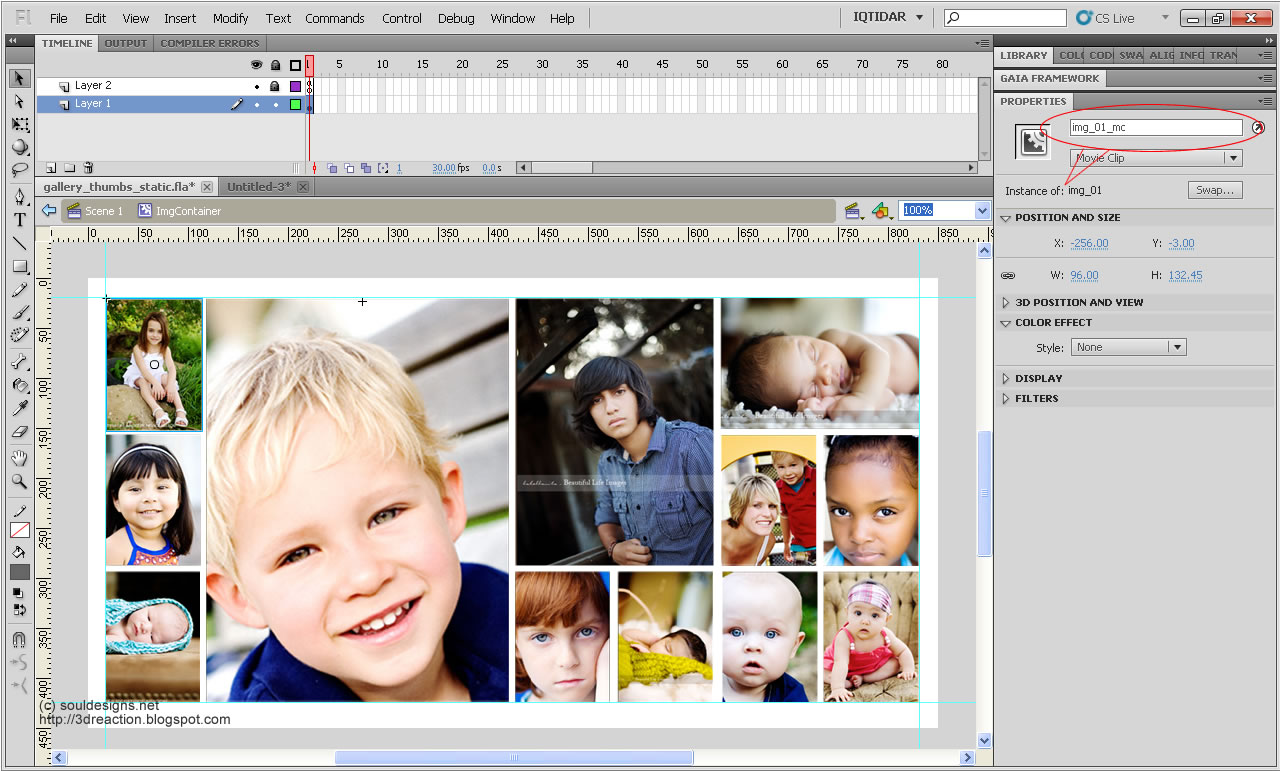
Now that we are inside the Movie Clip, which we have named "ImageContainer" you can name it anything you like, we will be arranging our images so that we can work with them further.
Guides:
In this example we will use Guides to properly arrange our images, so, what are guides? Guides are imaginary margins you can draw on your screen to help you easily align your objects, set animation starting points and much more. For enabling guides you first need to make sure the Rulers on your page are visible, for this goto "View -> Rulers (CTRL+ALT+Shift+R)" and when you click on the ruler and drag out, the guide margins will appear and you can drag them anywhere on the stage where you want your objects to aligned to them. These lines will not be exported and will not be visible in your .swf , they're just for work in our source .fla files. See example Screen 4-0
Screen 4-0. Click or Right-click on image for high-res shot or righ-click open in new tab to download.Converting Images to Individual Movie Clips
Now we are going to convert every image to an individual Movie Clip, for this we need to select every image press "F8" and select Movie Clip as the option in dialogue box and do it to all the movie clips in our "ImageContainer" Movie Clip.
Giving "Instance Names" to every Movie Clip
In AS3 if you want to interact to a Display Object you need to give it an Instance Name for sure. For this we need to select a movie clip, open "Properties" panel if it's not showing already and where it says
Screen 4-1. Click or Right-click on image for high-res shot or righ-click open in new tab to download.Step 5: Creating Motion Tween
Now we will create motion tween / animation for each clip.
1- Double Click the first Movie Clip to get inside (edit) the movie clip
2- Select the first frame and insert two new layers (see screen 5-0)
3- Insert frames upto Frame 30 (see screen 5-0)
Screen 5-0. Click or Right-click on image for high-res shot or righ-click open in new tab to download.5- Insert Keyframe( F6 ) on actions layer frame 15
6- Select frame '1' on actions layer and press ( F9 ) to open actions panel and add " stop(); " action and repeat this procedure with frame 15 Keyframe on this layer, so that when the movie starts it rests at the first frame and nothing happens. On Roll-Over state of the mouse we will have the image Zoom-In towards us. We'll do it later when finished with setting up with all the images(movie clips). (see Screen 5-1)
Screen 5-1. Click or Right-click on image for high-res shot or righ-click open in new tab to download.
7- Select Rectangle tool ( R) to draw the border that appears on roll-over, I have selcted a dark grey border, you can use a color of your own choice.
8- Now select first frame on the "border" layer and draw a rectangle of the same size / dimension as of the image and place over our thumbnail image. (see Screen 5-2)
9- Now select frame 15 on both layers (image & border) and " right-click " on your mouse and select " insert classic tween "
10- Again select frame 15 on both layers and Insert Keyframe, Press ( F6 )
Screen 5-2. Click or Right-click on image for high-res shot or righ-click open in new tab to download.
Screen 5-3. Click or Right-click on image for high-res shot or righ-click open in new tab to download.
11- Insert Keyframes on Frame 30 for both layers.
12- Lock actions and image layers. ( See Screen 5-3 )
13- Now select frame 1 on "border" layer and click on the border graphic, goto properties ( CTRL+ F3 if not open) panel and under "COLOR EFFECT" select "Alpha" and use "0" as the value of alpha, which will make the graphic visually disappear (% transparent) on the stage for first frame.
Screen 5-4. Click or Right-click on image for high-res shot or righ-click open in new tab to download.
14- Select frame 1 on both layers and goto Properties Panel and set easing to 100 ( see Screen 5-5 ), easing makes the zoom-in and out effect look smooth. Repeat this step with frame 15 on both layers.
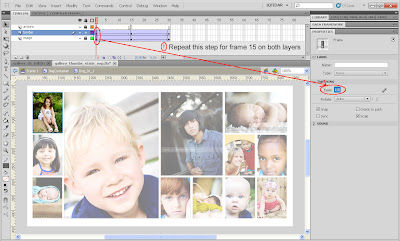
Screen 5-5. Click or Right-click on image for high-res shot or righ-click open in new tab to download.15- Now on frame 15, we will make both the thumbnail image and the square border increase in size to show a Zoom-In effect. 1st selct frame 15 on the Image layer and increase the width to by 14 pixels, in this example the image's original width is 96 px, so we make the width to 110 pixels, and on the properties bar if you link both Width & Height (see Screen 5-6) the size of the image or object will increase in proportion or we can say the ratio of width and height will be maintained.
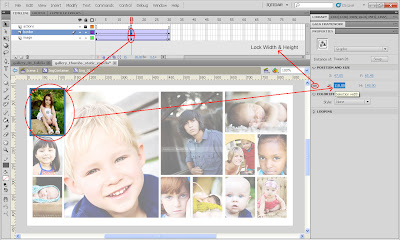
Screen 5-6. Click or Right-click on image for high-res shot or righ-click open in new tab to download.16- Now you have to repeat this procedure for every Movie Clip on the stage. After that we will move to the part where we will make these Movie Clips respond to the movement of our mouse.
Step 6: Applying ActionScript for Roll-Over effect.
As we know by now that we have created movie clips on the stage and have given them Instance Names i.e. img_01_mc, img_02_mc, so on and so forth. These instance names are like identifiers and are used to communicate with the display objects (Movie Clips, Buttons etc.)
Step by step we will define how to progress towards the goal. All of the actionscript will be put on the Image_Container movie clip's first frame; (see Screen 6-0)
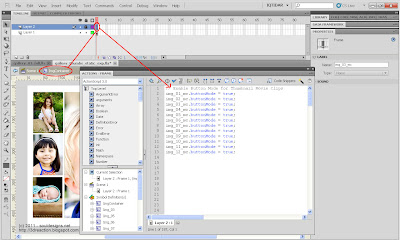
Screen 6-0. Click or Right-click on image for high-res shot or righ-click open in new tab to download.1- We need our movie clips to respond like buttons, to show hand-cursor on Roll Over and Later on make them click-able.
img_01_mc.buttonMode = true;in this simple line we have given our movie clip instance "img_01_mc" the attribute of a button, now this movie clip will act as a button to the mouse, means when we take our mouse over this movie clip, the hand-cursor will appear like it appears on buttons. We need to add this piece of code for every movie clip in the actions panel. (see Screen 6-0)
2- We are now ready to start our first roll-over;. We need to add an "Event Listener" to the code; an Event Listener in AS 3 is like a radar in my opinion, it just keeps waiting for an event which will or may occur in the lifetime of the movie clip.
img_01_mc.addEventListener(MouseEvent.ROLL_OVER, rollOverMC1);in the above line of code we are adding an Event Listener to our img_01_mc movie clip, this event listener keeps waiting for the event when the mouse rolls over this movie clip / button, and when the mouse comes over this movie clip, it triggers the function called "rollOverMC1"
we also need to add an event Listener when the mouse Rolls Out of the movie clip, because when the mouse rolls out, we want our clip to zoom back or zoom-out back to it's normal position.
img_01_mc.addEventListener(MouseEvent.ROLL_OUT, rollOutMC1);it's the same event listener as above, just the difference is that, it listens to when the mouse rolls out and triggers a different function which is called "rollOutMC1"
Now we will create the functions which will command our movie clip "
function rollOverMC1 (event:MouseEvent):void {ok, now's the time to explain this function; we can see that first this function is triggerd on a MousEvent and it takes our "img_01_mc" to go and play it's 2nd frame, because by default our movie clip is stopped at frame 1 and when mouse rolls over it starts playing from frame 2 and stops at frame 15 because we have put an stop(); function there already, now till when the mouse is over our movie clip it's going to be at frame 15, at this frame if you remember we had made the size of our objects increase, right? so when it moves from frame 2 to 15 we'll get an effect of the image zooming in. and when our mouse rolls out of the movie clip we will trigger another function, but before that we need to explain what setChildIndex means and what it's doing;
img_01_mc.gotoAndPlay(2);
setChildIndex(img_01_mc, numChildren-1);
}
Child Index:
On the main stage we have a mother movie clip named Image_Container, right? whatever name you have given is the main or mother movie clip or you can also call it parent, because it contains several more movie clips in it, which are our Button Movie clips img_01_mc, img_02_mc etc. etc.
The several movie clips inside the parent movie clip are it's children, automatically some clips are over others and some are under others like layers, if we count the number of these movie clips in our case, we have 12 movie clips and flash automatically keeps the record of all of these as the children and creates an index(number counting) to understand which clip is over another or which child is the eldest and which is the youngest. The eldest child is on top and youngest under the second-last one; but actually the number in flash's memory starts from 0(zero), so we have 12 children from 0 - 11; in this function what we are doing is counting all of the children and -1 one from them to take the movie clip which is being rolled over to the top-position or make him the eldest child so that it doesn't get hidden under other clips when it zooms in.
Roll Out Function
Ok now's the time to send back image to it's original position when the mouse roll out event occurs :)
function rollOutMC1 (event:MouseEvent):void {So, this explains it; very simple, when mouse rolls out it plays the frame sixteen from where the motion tween starts going back to normal and again goes and stops at frame one. Now's the time to create functions for all other remaining movie clips. Please remember that all function names should be different; there should be no same function names, I am pasting the code below for further understanding, when done with all 12 functions and event listeners, our movie works. I'll upload source FLA file for which the link will be given on top of this post :) soon.
img_01_mc.gotoAndPlay(16);
}
// Enable Button Mode for Thumbnail Movie Clips//-------- End of Tutorial; I'll be adding anything I find necessary time to time; if you find a problem in the article or functionality, please do not hesitate to write it in the comments; i'll be following as soon as I can.
img_01_mc.buttonMode = true;
img_02_mc.buttonMode = true;
img_03_mc.buttonMode = true;
img_04_mc.buttonMode = true;
img_05_mc.buttonMode = true;
img_06_mc.buttonMode = true;
img_07_mc.buttonMode = true;
img_08_mc.buttonMode = true;
img_09_mc.buttonMode = true;
img_10_mc.buttonMode = true;
img_11_mc.buttonMode = true;
img_12_mc.buttonMode = true;
// Image 01
img_01_mc.addEventListener(MouseEvent.ROLL_OVER, rollOverMC1);
img_01_mc.addEventListener(MouseEvent.ROLL_OUT, rollOutMC1);
function rollOverMC1 (event:MouseEvent):void {
img_01_mc.gotoAndPlay(2);
setChildIndex(img_01_mc, numChildren-1);
}
function rollOutMC1 (event:MouseEvent):void {
img_01_mc.gotoAndPlay(16);
}
// Image 02
img_02_mc.addEventListener(MouseEvent.ROLL_OVER, rollOverMC2);
img_02_mc.addEventListener(MouseEvent.ROLL_OUT, rollOutMC2);
function rollOverMC2 (event:MouseEvent):void {
img_02_mc.gotoAndPlay(2);
setChildIndex(img_02_mc, numChildren-1);
}
function rollOutMC2 (event:MouseEvent):void {
img_02_mc.gotoAndPlay(16);
}
// Image 03
img_03_mc.addEventListener(MouseEvent.ROLL_OVER, rollOverMC3);
img_03_mc.addEventListener(MouseEvent.ROLL_OUT, rollOutMC3);
function rollOverMC3 (event:MouseEvent):void {
img_03_mc.gotoAndPlay(2);
setChildIndex(img_03_mc, numChildren-1);
}
function rollOutMC3 (event:MouseEvent):void {
img_03_mc.gotoAndPlay(16);
}
// Image 03
img_04_mc.addEventListener(MouseEvent.ROLL_OVER, rollOverMC4);
img_04_mc.addEventListener(MouseEvent.ROLL_OUT, rollOutMC4);
function rollOverMC4 (event:MouseEvent):void {
img_04_mc.gotoAndPlay(2);
setChildIndex(img_04_mc, numChildren-1);
}
function rollOutMC4 (event:MouseEvent):void {
img_04_mc.gotoAndPlay(16);
}
// Image 05
img_05_mc.addEventListener(MouseEvent.ROLL_OVER, rollOverMC5);
img_05_mc.addEventListener(MouseEvent.ROLL_OUT, rollOutMC5);
function rollOverMC5 (event:MouseEvent):void {
img_05_mc.gotoAndPlay(2);
setChildIndex(img_05_mc, numChildren-1);
}
function rollOutMC5 (event:MouseEvent):void {
img_05_mc.gotoAndPlay(16);
}
// Image 06
img_06_mc.addEventListener(MouseEvent.ROLL_OVER, rollOverMC6);
img_06_mc.addEventListener(MouseEvent.ROLL_OUT, rollOutMC6);
function rollOverMC6 (event:MouseEvent):void {
img_06_mc.gotoAndPlay(2);
setChildIndex(img_06_mc, numChildren-1);
}
function rollOutMC6 (event:MouseEvent):void {
img_06_mc.gotoAndPlay(16);
}
// Image 07
img_07_mc.addEventListener(MouseEvent.ROLL_OVER, rollOverMC7);
img_07_mc.addEventListener(MouseEvent.ROLL_OUT, rollOutMC7);
function rollOverMC7 (event:MouseEvent):void {
img_07_mc.gotoAndPlay(2);
setChildIndex(img_07_mc, numChildren-1);
}
function rollOutMC7 (event:MouseEvent):void {
img_07_mc.gotoAndPlay(16);
}
// Image 08
img_08_mc.addEventListener(MouseEvent.ROLL_OVER, rollOverMC8);
img_08_mc.addEventListener(MouseEvent.ROLL_OUT, rollOutMC8);
function rollOverMC8 (event:MouseEvent):void {
img_08_mc.gotoAndPlay(2);
setChildIndex(img_08_mc, numChildren-1);
}
function rollOutMC8 (event:MouseEvent):void {
img_08_mc.gotoAndPlay(16);
}
// Image 09
img_09_mc.addEventListener(MouseEvent.ROLL_OVER, rollOverMC9);
img_09_mc.addEventListener(MouseEvent.ROLL_OUT, rollOutMC9);
function rollOverMC9 (event:MouseEvent):void {
img_09_mc.gotoAndPlay(2);
setChildIndex(img_09_mc, numChildren-1);
}
function rollOutMC9 (event:MouseEvent):void {
img_09_mc.gotoAndPlay(16);
}
// Image 10
img_10_mc.addEventListener(MouseEvent.ROLL_OVER, rollOverMC10);
img_10_mc.addEventListener(MouseEvent.ROLL_OUT, rollOutMC10);
function rollOverMC10 (event:MouseEvent):void {
img_10_mc.gotoAndPlay(2);
setChildIndex(img_10_mc, numChildren-1);
}
function rollOutMC10 (event:MouseEvent):void {
img_10_mc.gotoAndPlay(16);
}
// Image 11
img_11_mc.addEventListener(MouseEvent.ROLL_OVER, rollOverMC11);
img_11_mc.addEventListener(MouseEvent.ROLL_OUT, rollOutMC11);
function rollOverMC11 (event:MouseEvent):void {
img_11_mc.gotoAndPlay(2);
setChildIndex(img_11_mc, numChildren-1);
}
function rollOutMC11 (event:MouseEvent):void {
img_11_mc.gotoAndPlay(16);
}
// Image 12
img_12_mc.addEventListener(MouseEvent.ROLL_OVER, rollOverMC12);
img_12_mc.addEventListener(MouseEvent.ROLL_OUT, rollOutMC12);
function rollOverMC12 (event:MouseEvent):void {
img_12_mc.gotoAndPlay(2);
setChildIndex(img_12_mc, numChildren-1);
}
function rollOutMC12 (event:MouseEvent):void {
img_12_mc.gotoAndPlay(16);
}
Last Updated: Apr 13, 2011.
Thanks
Iqtidar Ali
www.souldesigns.net
Labels:
ActionScript,
AS 3.0,
AS3,
CS5,
Flash Learning,
Flash Tutorials
Tuesday, March 15, 2011
On My Way to Learning Gaia Flash Frawework
Hi. Everyone,
As I have been searching more and more and more help on learning Gaia Flash Framework, I have come accross good resources, but they're still less in quantity and help with less-complex project examples, but still a great help to get started with. One site that I find very helpful is TotallyNerdy.com take a look at the site, they offer good video tutorials that help you start fast track development with Gaia.
Please note that the video tutorials on this site are in English language.
thanks for today :)
Iqtidar.
www.souldesigns.net
As I have been searching more and more and more help on learning Gaia Flash Framework, I have come accross good resources, but they're still less in quantity and help with less-complex project examples, but still a great help to get started with. One site that I find very helpful is TotallyNerdy.com take a look at the site, they offer good video tutorials that help you start fast track development with Gaia.
Please note that the video tutorials on this site are in English language.
thanks for today :)
Iqtidar.
www.souldesigns.net
Thursday, March 10, 2011
Gaia Intro
Lyla is introducing us to Gaia Flash Framework, actually at the moment I need every bit of knowledge on this framework, because I have a challenging project ahead of me and this seems to be a solution. I will post review and my experience with Gaia when I am done with the project.
Labels:
Adobe Flash,
Flash Learning,
Gaia Framwork,
Tutorials,
website design
Wednesday, March 09, 2011
Sir Ken Robinson - Education System and Creativity
At TED 2006, Sir Ken Robinson speaks about how we need to revive our education system in order to prepare ourselves for the future. The lecture is delivered in a funny way. The vision in this lecture did of-course has made me think of human creativity and brain in a bigger circle. Enjoy the lecture.
Labels:
Creativity,
Education,
Freedom of Mind,
Human Brain Capacity,
TED
Thursday, March 03, 2011
Apple Unveils iPad 2, with Steve Jobs on Stage :)
A Great News Today !!! iPad 2...........iPad was hot.... and while still the heat was ON, they threw wine on the fire !!! :) this one looks sleeker and features look better. As we see on the Apple site they claim it to be faster, reliable and in sync with the social media of today, even content creation is there. iPad is my favorite hand-held device as of millions of you.
Apple CEO Steve Jobs returned from his medical leave to announce the iPad 2 at a San Francisco event yesterday. The new iPad is thinner than an iPhone 4, boasts faster processing speeds, and sports two cameras for Apple’s FaceTime feature.
“While others have been scrambling to copy the first generation iPad, we’re launching iPad 2, which moves the bar far ahead of the competition and will likely cause them to go back to the drawing boards yet again,” Jobs said in a statement.

The iPad 2 also comes in both black and white versions, and will be available in the US from 11 March. Prices start at US$499 for a WiFi-only model. There are a total of nine different iPad 2 models, with Verizon and AT&T having their own distinct 3G versions.
Apple has also taken strides in making the iPad 2 more than just a device for consuming media, as its predecessor was. With the announcement of tablet versions of its Garageband and iMovie apps, the Cupertino company is hoping the new iPad will be used as a content-creation device.
In addition, Apple has also designed its own case for the iPad 2, called Smart Cover. The case (below) uses a magnetic hinge, folds into a stand for typing, and will wake or put to sleep the tablet when opened or closed, respectively.
Along with the iPad 2, Jobs also announced an update to iOS. Version 4.3 includes a faster Safari, enhancements to AirPlay and the Personal Hotspot feature. The latter will allow users to share their iPhone 4 cellular data connection over WiFi with up to five devices.courtesy of Apple
Labels:
Apple,
Handheld Devices,
iPad,
Macintosh
Learning Fragmentation in 3D Studio Max
Hi.
We meet again today. I found this great tutorial on working with Reactor in 3D Studio Max at CGCookie.com
The Video tutorial is around 37 mins and holds a great deal of learning curve. I hope you'll like my help.
http://max.cgcookie.com/2009/12/03/learning-fragmentation-in-reactor/
We meet again today. I found this great tutorial on working with Reactor in 3D Studio Max at CGCookie.com
The Video tutorial is around 37 mins and holds a great deal of learning curve. I hope you'll like my help.
http://max.cgcookie.com/2009/12/03/learning-fragmentation-in-reactor/
Labels:
3d Animation,
3d Fragmentation,
3d Modeling,
3D Studio,
Video Tutorial
Wednesday, March 02, 2011
3D in Pakistan - Sharp Image.


Hi. Everybody !Most of us would not think Pakistan as the place for a 3D Design & Animation Studio, but there are surprises. We have got some great talent and it's ever-growing. Sharp Image is a great place, I only visited once when Shiraz invited me to and a good environment to work for 3D and Post Production. I am placing some snap-shots of their work. Their areas of expertise are 3D Architecture, Character Design & Animation, 3D Asset Development & Post Production VFX. The site is www.sharpimageonline.com


Wednesday, February 23, 2011
Shiraz Saeed Showreel 2009
Some more work from Shiraz :)
Labels:
3D,
3d Animation,
3D Design,
3d Modeling,
Showreel
Shiraz Saeed - 3D Modeler & Animator - Showreel
Shiraz Saeed, is my long-time friend :) He's a passionate 3D Modeler, Designer & Animator, Has worked with great Pakistani companies such as Sharp Image & Post Amazers. Now a days doing his own business and providing above services to clients, I like his work a lot, will be posting more with time. Thanks for reading (if you did read it)
Labels:
3D,
3d Animation,
3D Design,
3d Modeling,
Showreel
Sunday, February 13, 2011
Featured Site: Fantasy Interactive - My Favorite Interactive Agency
Review:Hi. Everyone out there !!!
today I am reviewing the most favorite Interactive Agency. Fantasy Interactive evolved from a small one man endeavor to one of the top interactive / design agencies of the 21st century. I personally like them for many reasons.. like they have built up themselves from ground-up, they have evolved both in their approach and strategy with time. Once they were all FLASH.... heavy, animated and complicated, today they have reviewed their thought patterns and realised and adopted the "balance" which benefits their clients in many ways. These people are award-winners and passionate about what they do. Impressive list of clients and impressive work, as I see them through their website, looks to me one of the best places for designers, developers & creative directors to work at.


I think I have said enough today, visit their site for more info www.f-i.com
Saturday, January 15, 2011
Featured Artist: Mike-Nash

Hi, Long time since a featured artist. :)
Yesterday I saw the site of Mike Nash and his illustrations were great, so I thought I should post his work to my blog and emailed him for a permission. He gave me permission on the condition that everybody on my blog should take care of the copyrights and doesn't use his work on their site or projects. Mike Nash's Official Website is
www.mike-nash.com , Here you can find several tutorials on how to make great illustrations and his photo gallery.
Mike Nash has a great list of clients like Lord of the Ring, Dungeons & Dragons, Warhammer etc :D

Subscribe to:
Posts (Atom)